

Only 3 of 602 newly disclosed vulnerabilities in the first half of 2021 were found in WordPress core, according to the 2021 mid-year WordPress security report from Wordfence and WPScan. That split changes how you should think about Website Security for WordPress. Core matters, but your plugins and themes are usually the larger exposure.
That doesn't mean you need a bigger pile of security plugins. It means you need a short order of operations, a clear decision when a plugin vendor hasn't shipped a fix, and proof that you can restore the site if prevention fails. For a small business, church, or nonprofit, that's a workable security plan. Clicking update whenever you remember isn't.
Hardening Order and Steps for a Live Site
Start with the order below before you buy another tool. It puts plugin inventory and account control ahead of add-ons because abandoned code and valid logins are easier for an attacker to use than a dramatic movie-style break-in. If you're not sure where your current setup stands, it's worth taking time to assess your business website's security against these basics before you change anything on the live site.
WordPress hardening order for a small team
| Order | Control | Failure it prevents | Timing target |
|---|---|---|---|
| 1 | Inventory plugins and themes and delete unused ones | Abandoned code stays exploitable after deactivation | This week |
| 2 | Unique passwords and MFA on WordPress admin, hosting, and DNS | Stolen credentials used as if they were legitimate | Same day |
| 3 | Patch critical or actively exploited components | Known flaws used as the way in | Same day |
| 4 | Ordinary core, plugin, and theme updates after a staging test | A rushed update takes down forms, donations, or checkout | Named maintenance window |
| 5 | Force HTTPS on the public site and wp-admin | Admin traffic and logins sent in the clear | Immediately if missing |
| 6 | Tighten file permissions and block PHP in uploads | A writable core or upload folder becomes code execution | With the host setup |
| 7 | Firewall or login rate limits | Repeated password guessing against wp-login | After accounts are locked down |
| 8 | Off-site backups with a tested restore | The only copies die with the compromised account | Weekly verification |
The order is deliberate. A firewall in front of fifteen forgotten plugins and a shared admin password is decoration with a settings page. Clean up what runs, lock the accounts that control it, then add filtering and monitoring around a smaller target.
Why plugins come first
Treat every plugin, theme, and piece of must-use code as software you've chosen to trust with your site. The Patchstack WordPress vulnerability statistics for 2025 reported that 42% of tracked vulnerabilities remained unpatched in that dataset, which is why a tidy update screen doesn't prove every component is supported. A plugin can be current and still be a poor bet if the vendor has stopped maintaining it.
WordPress hardening guidance points site owners toward keeping plugins updated and deleting inactive plugins rather than merely deactivating them. Deactivated code still sits on disk. If nobody uses the feature, delete the plugin and its leftover files where the vendor provides a clean removal option. Keep a note of what you removed and why, then move on.
Practical rule: If you can't name the business job a plugin does and the person who would notice if it vanished, it shouldn't stay installed while you think about it for another quarter.
Steps for a live donation booking or checkout site
Work through these steps in order. They're written for a site that can't casually go down on a Tuesday afternoon, which describes most sites once money, registrations, or customer requests pass through them.
Export and download a full backup first. Save both the files and the database somewhere outside the hosting account, and confirm the download opens. Don't start deleting or updating until you have a copy you could restore without asking the live server for permission.
Build the inventory. List the WordPress core version, every plugin, every theme, and any must-use plugins or custom drop-ins, including inactive items. Delete what's unused, and confirm what remains comes from WordPress.org or a reputable vendor you can contact for support.
Check what automatic updates cover. According to the WordPress developer documentation on upgrading, automatic background updates were introduced in WordPress 3.7 and minor core releases are enabled by default for many sites, while new installations from WordPress 5.6 generally enabled major core auto-updates unless a version-control checkout was detected. Plugins and themes are set separately, so verify each setting instead of trusting the phrase automatic updates are on.
Update on staging before production. Apply the pending core, plugin, and theme updates to a staging copy, then click through the donation form, booking flow, checkout, search, and account login that real visitors use. If staging passes, deploy during your named maintenance window with the backup ready for rollback, and repeat the same click-through on production.
Fix the accounts. Replace shared passwords with unique passwords stored in a password manager, enable multifactor authentication for WordPress administrators, and apply the same standard to hosting, DNS, registrar, and database users. Remove dormant accounts entirely, and drop anyone who only edits content down from administrator to editor or author.
Force HTTPS everywhere it matters. Confirm the public site redirects to HTTPS and that wp-admin doesn't load over plain HTTP. Then check that forms, payment embeds, and mixed-content warnings haven't broken after the redirect, because a secure login next to a broken donation form is only half a win.
Tighten files and uploads. Use 755 for directories and 644 for files unless your host documents another safe scheme, and block PHP execution in the uploads folder through your host controls or server rules. The uploads folder needs to accept images and documents from legitimate users, not run whatever lands there.
Add one layer of filtering, not three. Turn on your host firewall if you have one, or install one well-supported security plugin, then limit repeated failed login attempts against wp-login.php. Stacking several security plugins that all rewrite login and firewall rules creates conflicts you'll get to debug at the worst possible time.
I would classify critical or actively exploited issues for same-day remediation and high-severity issues for rapid emergency deployment, while ordinary updates wait for the staging check and maintenance window. That split keeps you from treating a minor compatibility release like a fire drill, and it also keeps a serious flaw from hiding inside next month's routine list. Speed matters most when someone who isn't logged in can use the flaw.
Pass or fail checklist for whoever logs in
Hand this to the staff member, volunteer, or freelancer who maintains the site. Each line should get a clear pass or fail, not a vague probably.
- Inventory complete: Every plugin, theme, and must-use file is listed, supported, and tied to a current business job.
- Unused code deleted: Inactive plugins and themes you don't need are removed from disk, not just deactivated.
- Accounts locked down: No shared passwords remain, MFA protects privileged accounts, and former staff or volunteers can't log in.
- Updates tested: Critical fixes are handled the same day, and ordinary updates pass a staging click-through before production.
- HTTPS confirmed: The site and wp-admin force HTTPS, and key forms still submit correctly afterward.
- Backups recoverable: A recent off-site backup containing files and the database has been restored successfully on staging.
If several lines fail, fix them in table order. Don't begin by shopping for a premium scanner. A scanner can tell you there's a problem, but it can't make an abandoned plugin maintained or turn a shared password into a good idea.
What to Do When a Plugin Has No Patch
One industry summary counted 11,334 new WordPress ecosystem vulnerabilities in 2025, up 42% from 2024, with 91% located in plugins rather than core and 46% receiving no vendor fix at disclosure, according to the Swif summary of WordPress security statistics. That makes plugins the largest attack surface on many small sites, not a side concern.
Those figures also explain why the usual advice is incomplete. Updating everything the minute a notice arrives can break a payment, membership, or form-heavy site, especially if the update changes templates, hooks, or a gateway connection. Waiting because the homepage still looks fine is worse. A vulnerable plugin can remain usable by an attacker long before the damage becomes visible.
Four questions before you decide
Answer these in writing before you keep, compensate for, or remove the plugin. Short answers are fine. Guesses are not.
- What job does it do: Does it run donations, bookings, memberships, checkout, a contact form, or something nobody would miss this week?
- What can it reach: Can it view or change personal data, payment records, user accounts, files, or site settings?
- Who can exploit it: Does the flaw require a logged-in user with a specific role, or can a visitor who is not logged in trigger it?
- What breaks if it goes: If you remove it today, do you lose a convenience, a campaign page, or the only way people can pay and register?
That check turns a frightening alert into a business decision. It uses the same risk ranking behind disciplined managing updates to address security vulnerabilities. A plugin that lets an unauthenticated visitor create an administrator account needs a different response from a minor display bug behind an admin login.
Plugin decision when a vulnerability shows up
| Situation | Exploitability | Needed this week | Action |
|---|---|---|---|
| Unused, inactive, or abandoned plugin | Any | No | Delete it. Deactivation is not removal |
| Nulled, pirated, or unknown-source copy | Unknown | Any | Remove and replace with a copy from WordPress.org or the vendor |
| No patch, and the flaw allows unauthenticated code execution, file read, or new admin accounts | High | Yes, and no quick replacement | Compensate the same day, then replace on staging |
| Patch or safe replacement exists for that same high-impact flaw | High | Replaceable now | Remove or update today after a staging click-through |
| No vendor fix, plugin cannot touch personal or payment data | Low | Yes, for a live campaign | Time-boxed exception with an owner, a review date, and daily log checks |
| Patch exists but the plugin runs donations, memberships, or checkout | Medium or high | Yes | Test on staging, deploy in the maintenance window, keep the backup ready |
What compensation actually means
Compensation is a set of controls, not hope that the firewall will catch everything. Turn off plugin features you do not use, restrict the affected feature to logged-in roles if the plugin allows it, keep the firewall in front of the site, and read the relevant logs daily while the exception is active. At the same time, test a replacement on staging and write down how forms, emails, exports, and redirects will move over.
Keep a one-page exception log with the plugin name, vulnerability, business reason for keeping it, compensating controls, named owner, and review date. That record separates a considered delay from a forgotten browser tab. If the replacement turns into a migration or the exception needs recurring attention, WordPress plugin maintenance can cover the updates, fixes, improvements, and migration work before a temporary decision becomes permanent risk.
A delay with an owner, a deadline, and extra controls is a decision. A delay nobody wrote down is just neglect with better intentions.
If the flaw allows unauthenticated remote code execution, arbitrary file read, administrator creation, or privilege escalation, treat it as same-day work even when the plugin is important. You may keep the feature alive briefly behind controls while a replacement is tested, but leaving it exposed because replacement sounds tedious is a bad trade. Tedious is still cheaper than explaining a compromised donor or customer database.
How to Test a WordPress Backup Restore
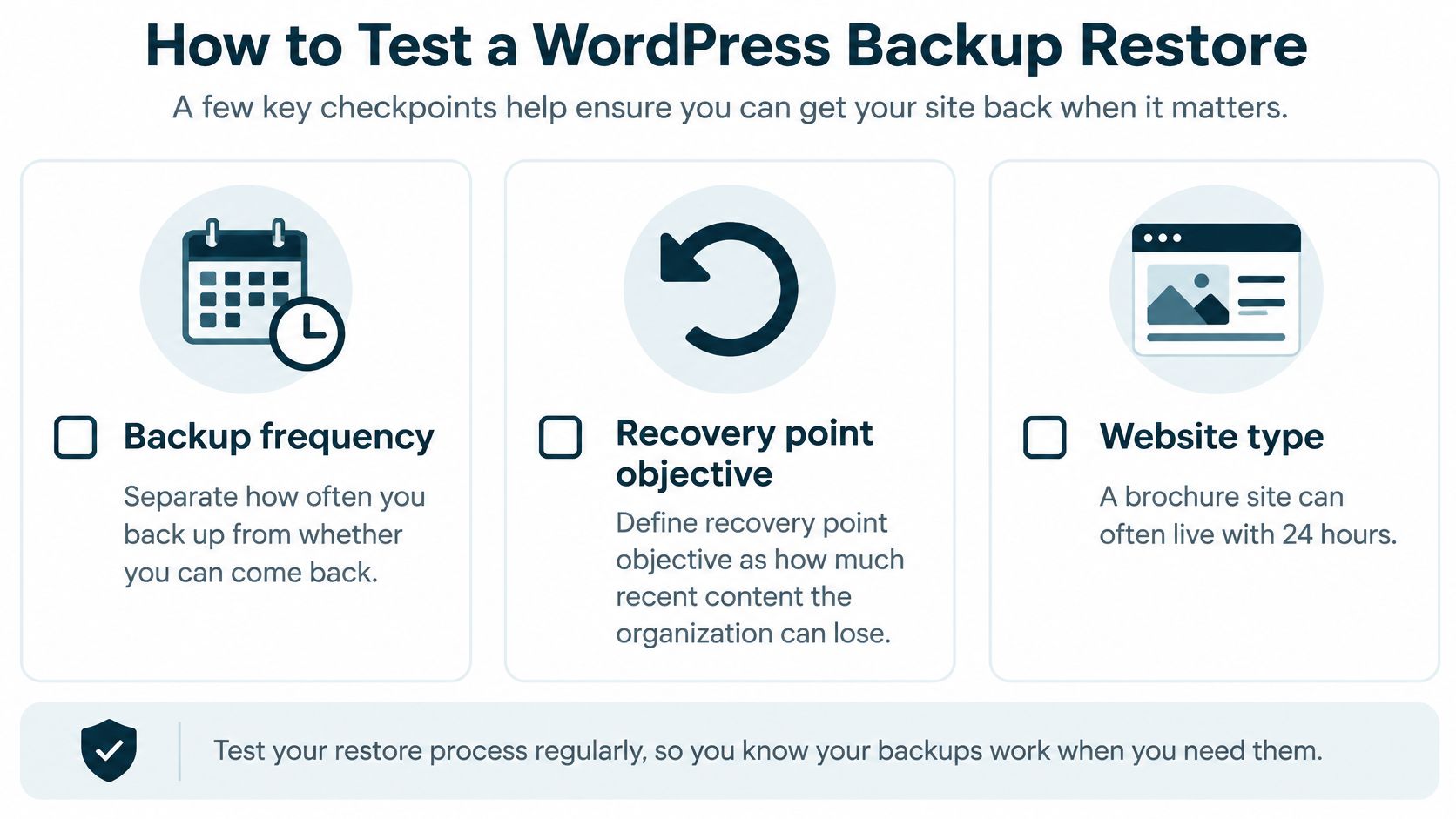
Separate how often you back up from whether you can come back. A backup job that reports success every night can still produce a copy that won't restore, misses the database, or depends on the same hosting account an attacker just took over. The restore is the product. The schedule is just how fresh that product is.
The checkpoints below give you a quick visual version of the targets and test that follow.
Set two recovery targets first
Your recovery point objective is how much recent content, orders, registrations, or donations you can afford to lose. Your recovery time objective is how long the public site may stay down before the outage becomes a business or trust problem. Pick both numbers before you argue about backup tools, because the targets determine the frequency and storage you need.
Recovery targets by site type
| Site type | Recovery point objective | Recovery time objective |
|---|---|---|
| Brochure or informational site | Up to 24 hours of content | About a business day |
| Donation drive, event registration, or store | A few hours | Hours, not days |
| Membership or payment site | A few hours at most | Same business day |
Map those targets to at least daily backups, and back up more often when money, registrations, or membership changes are moving through the site. Store copies somewhere the hosting account can't delete, and include both files and the database in every full backup. A database without uploads loses your media, and files without the database lose the content and settings that make the site yours.
Run the monthly staging test
Put this test on a recurring calendar slot. Restore the chosen files and database to staging, log in as an administrator, submit one real form, and open a media file from the library. If you run donations or checkout, complete the staging version of that flow too, using test mode where your payment provider offers it.
This walkthrough shows the restore sequence in action, so you can compare it with the steps your own host or backup tool requires.
WordPress.com guidance on how to fix a hacked website recommends preserving the compromised site, backing up both files and the database, selecting a backup from before suspicious activity, and testing it on staging when possible. Follow that sequence during an incident instead of restoring the newest copy by reflex. The newest copy may faithfully preserve the compromise.
If the monthly test fails, your backup plan is a hope. Fix the storage location, credentials, backup scope, or restore process while the live site is healthy and nobody is watching the clock. A written disaster recovery plan should name who can approve a restore, where the copies live, and which administrator accounts can reach them.
Recover the identities too
Restoring files doesn't reset the keys an attacker may already hold. After an incident, reset hosting, WordPress, database, SFTP, email, and API credentials, and review connected services such as payment gateways, CRM tools, and email marketing accounts. Keep the compromised files and database until you understand what changed, because deleting evidence early can leave a second access path untouched.
A fully patched site can still be entered through a stolen password, a vulnerable integration, or a simple mistake. That's why the tested restore belongs inside the security plan rather than in a separate someday folder. For a church or nonprofit, a failed restore during a campaign costs public trust, not just uptime, and trust doesn't come back with a status page update.
Habits That Keep a Small Site Safer
Good habits beat occasional heroics. A staff of one or two can't maintain a complicated ritual, so keep the routine small enough to survive your busiest season. The goal isn't to stare at dashboards. It's to notice the few changes that deserve action while they're still small.
Name one person who reads alerts. If alerts go to a shared inbox nobody owns, they effectively go nowhere, however impressive the monitoring tool looked during setup. That person should know where the plugin inventory, exception log, and restore instructions live.
Watch the signals that matter
Check administrator logins at odd hours or from unexpected places, file changes outside a planned update, uptime drops, and security scan findings. A clean scan is incomplete if inactive plugins are still sitting on disk, because many scans focus on active code and known malware patterns. Pair the scan with the monthly inventory instead of treating either one as the whole answer, a point covered in more depth in our overview of intrusion detection systems.
Login watching still matters after every plugin is current. Verizon's 2025 breach analysis reported that about 88% of breaches in its Basic Web Application Attacks pattern involved the use of stolen credentials, according to the Verizon presentation hosted by New York State ITS. An attacker using a valid password can look like a legitimate administrator to tools designed mainly to stop anonymous requests.
- Use least privilege: An editor isn't an administrator, and a volunteer who left last spring doesn't keep a login just in case.
- Skip nulled software: Don't install pirated themes or plugins, even for a quick test, because you can't verify their source or update path.
- Avoid plugin stacking: Don't run three security plugins that all rewrite login rules and then wonder why legitimate users get locked out.
- Re-run the inventory monthly: Compare installed plugins and themes with the list you approved, and investigate anything nobody can explain.
Keep custom code review narrow
If you maintain a small custom theme or plugin, review three concrete habits. Escape dynamic output before it's printed to the page, use WordPress database APIs instead of hand-built SQL, and require a valid nonce on actions that change data. Sanitizing input doesn't replace a permission check, and a nonce doesn't prove the current user is allowed to perform the action.
That distinction sounds picky until a logged-in subscriber finds a form that changes settings meant for administrators. Test important forms while logged in as a low-privilege user, not only as the administrator who built them. You'll catch permission mistakes that an admin-only test politely hides.
When something looks wrong: Don't start by deleting files. Note the time, preserve a copy, and work from evidence rather than tidying up the scene.
Keep a short incident sequence with the restore instructions. Contain access by resetting the riskiest credentials first, preserve the compromised files and database before cleanup, restore a copy taken before the suspicious activity on staging, then log what changed and when. That order protects both recovery and your ability to learn what happened.
Close the week with a rhythm you can repeat. Read the alerts, spot-check that backups still exist off the server, and either apply or log every deferred update. Fifteen focused minutes beats a quarterly panic, and it gives the next person a record instead of a mystery.
Decide Who Owns Patches and Restore Tests
The controls above don't maintain themselves. Somebody has to own the plugin inventory, the staging updates, the exception log, and the monthly restore test, with dates on a calendar rather than good intentions in a meeting. Decide who that is before the next urgent alert arrives.
Keep the work in-house when one person on staff can realistically do it. That person needs administrator access, a staging site, time during normal hours, and permission to remove a plugin or schedule a short maintenance window without forming a committee. If those pieces exist, use the two decision tables as your operating checklist and keep the routine boring.
Signs the work will slip
Be honest about the warning signs. The same people may also run campaigns, the shop, the event calendar, and Sunday communications, which means security tasks lose to every deadline with a public audience. That's understandable. It's also how a manageable update becomes a month of exposure.
- Alerts sit unread: Nobody has opened the security emails or dashboard notices for a week.
- Exceptions pile up: Deferred updates sit in a log with no owner, review date, or replacement plan.
- Restore tests keep moving: The staging restore gets postponed whenever programs or sales need attention.
- Access is fuzzy: Nobody's certain who can reach hosting, DNS, backups, and the domain registrar.
Consider a partner when those slots keep getting taken by programs or sales. Bruce & Eddy's managed hosting and security includes 24/7 monitoring, SSL and security patches, and daily backups, and the Support Retainer, called Digital Peace-of-Mind Management™, includes proactive monitoring for uptime, performance, security scanning, and error detection. We also stay after a website launch, and if something breaks we handle the problem ourselves. You can compare that standing help with your internal capacity through our website maintenance and support services and the wider services page, then contact us if you want to talk through your setup.
No honest provider can promise an unhackable site. What you should expect is a named process, visible patch decisions, tested backups, and a person who answers when something looks wrong. Ask how exceptions are logged and how often restores are proven, because those answers reveal more than a long feature list.
Finish with three dated actions. Name the patch owner, name the restore-test owner, and set the dates for your first full inventory and first staging restore. Once those four items exist, Website Security for WordPress stops being a vague worry and becomes ordinary maintenance your team can run.
If patch decisions, plugin exceptions, and restore tests keep losing to your real work, Bruce & Eddy can handle the standing maintenance through managed hosting, security monitoring, updates, and daily backups. Visit Bruce and Eddy to see how that support fits your site, and bring your current plugin list so we can start with the decisions that matter most.
