

Most popular advice on this topic is wrong in a useful sounding way. Install a widget, run a scan, get a badge, call your site compliant. That's not how an ADA compliant website works, because the ADA doesn't hand out certificates and a scan can't tell you whether a person can finish a form.
What you can do is separate two things that get tangled together. One is the legal duty to provide equal access. The other is the technical standard you build and test against. Keep those separate, pick a clear target, and treat accessibility like maintenance instead of a launch day event. That's the approach that holds up.
What an ADA Compliant Website Actually Requires
There's no official ADA certificate for a website, and no single checklist makes a site compliant by itself. The working benchmark is WCAG, the Web Content Accessibility Guidelines. If you're starting from the basics, our explainer on what website accessibility means in practice covers the plain language version before you get into criteria.
The WCAG 2.2 guidelines organize accessibility into four testable principles, perceivable, operable, understandable, and reliable, and define three conformance levels, A, AA, and AAA. Level AA is normally the practical target because it covers the broadest set of operational barriers without requiring every AAA criterion. Each component should map to explicit success criteria that can be tested as pass or fail conditions in design, development, procurement, and maintenance.
WCAG Conformance Levels at a Glance
| Level | What It Covers | Typical Requirement | How It Is Used |
|---|---|---|---|
| A | Basic barriers that block access entirely | Text alternatives for meaningful images and keyboard operation of core functions | The floor, not a finish line |
| AA | The broadest practical set of barriers | 4.5:1 text contrast, visible focus, consistent navigation, captions for multimedia | The target most businesses and public agencies adopt |
| AAA | Stricter criteria for enhanced access | 7:1 contrast for normal text, sign language for prerecorded video | Rarely met across an entire site |
| WCAG 2.2 AA | Current version, builds on WCAG 2.1 | Adds criteria such as Focus Not Obscured and Dragging Movements | Recommended current target for new builds |
In practice, that means programmatic names and text alternatives for controls and images, keyboard access with visible focus, semantic structure and predictable navigation, and state exposed through native HTML or correctly implemented ARIA. Native HTML is usually the better bet. A real button already works with a keyboard and announces itself correctly. A clickable div needs extra code to do the same job, and that code is where sites break.
Practical rule: Set WCAG 2.2 Level AA as the target for the whole site and write it into the project brief before design starts, not after the mockups are approved.
Retrofitting is where budgets go. If contrast, focus styles, and heading order are decided in the design system, most pages inherit the fix. If they're decided page by page after launch, you're paying to repair the same template problem dozens of times.
Which Accessibility Laws Apply to Your Organization
Start by sorting out which title of the ADA covers you, because the answer changes what "required" means.
Title II covers state and local governments. The Department of Justice Title II web rule first steps establish WCAG 2.1 Level AA for websites and mobile applications operated by state and local governments, covering online services, programs, and activities, not just a homepage. Entities serving populations of 50,000 or more must comply by April 26, 2027, while entities serving fewer than 50,000 people and special-district governments must comply by April 26, 2028.
Title III covers private businesses open to the public, which includes many service firms, retailers, churches, and nonprofits when they offer goods or services to the public. The Department of Justice web guidance for businesses states that businesses open to the public must meet ADA nondiscrimination and effective-communication obligations while retaining flexibility in how they comply, and the DOJ has not established one detailed technical standard for private businesses.
Which ADA Rule and Standard Applies by Entity Type
| Entity | Rule | Technical Standard | Compliance Date |
|---|---|---|---|
| Public entities serving 50,000 or more | Title II | WCAG 2.1 Level AA | April 26, 2027 |
| Public entities serving fewer than 50,000 and special districts | Title II | WCAG 2.1 Level AA | April 26, 2028 |
| Private businesses open to the public | Title III | No single detailed technical standard; equal access and effective communication | No single date in the Title II rule; the underlying ADA duty applies now |
That gap is why "ADA compliant" is a shaky claim for a private business. WCAG 2.1 AA, or 2.2 AA for a new build, is the clearest benchmark you can test against, but meeting it doesn't automatically settle the legal question for your organization. What protects you better is documentation. Keep records of what was tested, what failed, what you fixed, and when you retested.
Litigation is part of the picture, but it isn't a compliance score. Seyfarth Shaw's ADA Title III reporting puts website-accessibility lawsuits filed in U.S. federal court in 2024 at 2,452, a 13% decrease from 2023. A Seyfarth Shaw summary of those 2024 filings reports website-accessibility lawsuits represented 28% of all 8,800 ADA Title III lawsuits filed in U.S. federal court in 2024. Fewer filings doesn't mean lower expectations for your customers.
One more point belongs here because it shapes how you document. A 2025 international study of accessibility practitioners found that manual testing was unanimously viewed as the gold standard for identifying accessibility issues, despite growing reliance on automation. So your records should show human testing, not just scan reports.
Do a short sort before you spend money. Identify your entity type, your jurisdiction, and which online services people depend on, such as booking, donations, registrations, or account access. That tells you where the risk and the user harm are concentrated.
Accessibility Checks That Decide Pass or Fail
These checks work best as pass or fail tests you can run yourself, starting with contrast because it's measurable.
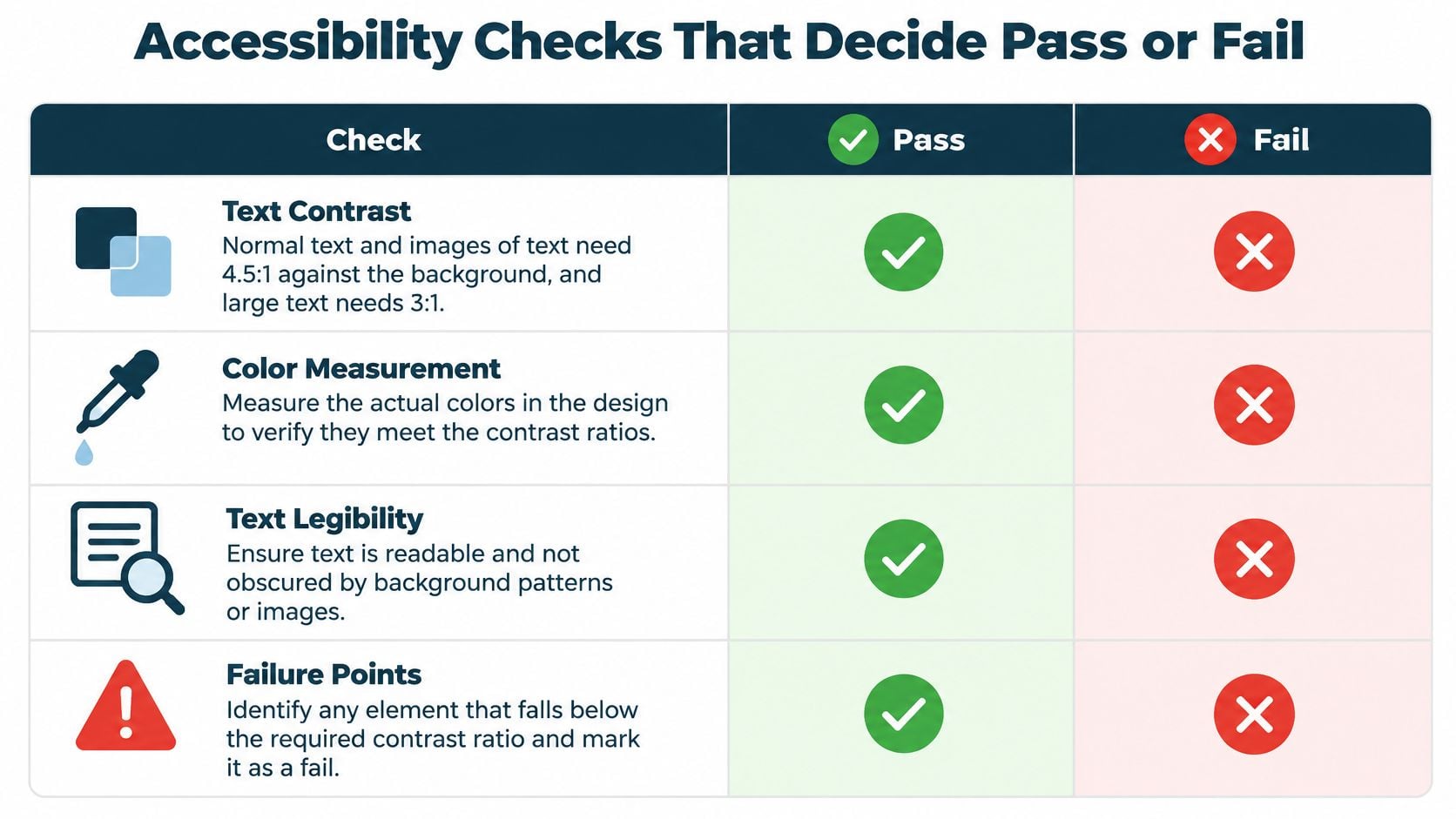
The WCAG 2.2 specification sets ordinary text and images of text at a contrast ratio of at least 4.5:1 against the background for Level AA, with large-scale text at 3:1. Test the actual foreground and background colors in buttons, navigation, forms, alerts, and body copy. A brand color pairing can fail even when it looks fine to you. When you need to check a specific pairing before it goes into a theme, you can validate contrast with Font Checker Pro and record the ratio with the color values.
Accessibility Checks, Pass Conditions and Test Methods
| Check | Pass Condition | How to Test |
|---|---|---|
| Text contrast | 4.5:1 for normal text, 3:1 for large text | Measure real button, nav and body colors with a contrast checker |
| Keyboard operation | Every function works with Tab, Enter, Space and arrow keys | Unplug the mouse and complete each key task |
| Keyboard traps | Focus can always leave a menu, modal or embed | Tab into each widget and confirm you can get back out |
| Visible focus | A visible focus state on every control | Tab through the page and watch each focus outline |
| Focus not obscured | Sticky headers, banners and chat never cover focus | Tab to controls near fixed elements and check |
| Dragging movements | A click or keyboard alternative for every drag action | Try sliders, sortable lists and uploads without dragging |
| Text alternatives | Meaningful images have accurate alt text; decorative images are hidden | Review alt text in the media library and listen with a screen reader |
Keyboard failures are the ones that stop people cold. A menu that only opens on hover, a modal you can't close with Escape, or a date picker that swallows focus will end the task. Focus not obscured fails on real sites because a sticky header or cookie banner sits on top of the focused link, so the user is tabbing blind.
Dragging fails in predictable places too. Sliders, sortable lists, maps, and file uploads need a click, tap, or keyboard path. If the only way to set a value is to drag a handle, that's a fail.
The short video below is worth watching before you run your first keyboard pass, because seeing focus move through a page makes the failures obvious.
Start with the three pages that earn revenue or donations. For most organizations that's the home page, the contact or booking form, and the checkout or donation page. Fixing a template level contrast or focus problem there usually fixes it everywhere that template is used.
Running an Audit and the Tools That Support It
An audit is a sequence, not a tool purchase. Run it in this order and you'll spend your time on failures that block tasks instead of chasing a score.
The first two steps set up everything that follows.

- Inventory pages and tasks: List every page, form, booking, donation, and checkout flow. Mark the ones customers must complete, and note which template or plugin produces each one.
- Run an automated scan: Use WAVE, axe, or Lighthouse on each key page. Log every flagged item with its page, element, and criterion so you can group repeats by template.
- Test keyboard only: Tab through each page, confirm visible focus, and complete the key task without a mouse. The W3C Understanding document for WCAG 2.2 states that Success Criterion 2.1.1 requires every function of web content to be operable through a keyboard interface, without requiring specific timing for individual keystrokes, except when the underlying function depends on the path of a user's movement rather than only its endpoints. Testing with Tab, Shift+Tab, Enter, Space, and arrow keys exposes custom controls that scanners miss, including keyboard traps.
- Check reflow: Zoom to 200% and narrow the view to 320 pixels. Content shouldn't clip, overlap, or force horizontal scrolling to read a line.
- Run a screen reader on the top tasks: Use NVDA, VoiceOver, or JAWS on your three most important flows. Listen to headings, labels, link text, and error messages, and try to finish the task by ear.
- Log a backlog: Record severity, owner, and deadline for each issue. Group fixes by template, theme, or plugin, because one template fix can clear the same failure on many pages.
- Retest after changes: Re-run the scan and the keyboard pass after fixes, and again after every plugin, theme, or design update.
If you want a printable version of this sequence, our website accessibility checklist follows the same order.
Accessibility Testing Tools Compared
| Tool | Best For | Cost | Blind Spot |
|---|---|---|---|
| WAVE | Quick visual overlay of errors and page structure | Free browser extension | Cannot judge keyboard flow or screen reader output |
| axe DevTools | Automated rule checks inside the browser | Free core extension, paid tiers for advanced features | Misses focus order and whether content makes sense |
| Lighthouse | Accessibility audit inside Chrome DevTools | Free | Its score is not a conformance result |
| NVDA | Screen reader testing on Windows | Free | Takes time to learn and runs on Windows only |
| VoiceOver | Screen reader testing on Mac and iPhone | Built into Apple devices | Behaves differently from other screen readers |
| JAWS | Screen reader testing widely used on Windows | Paid license | Cost, and it runs on Windows only |
I'd start with a scanner and keyboard testing before buying anything. One screen reader covering your top tasks teaches you more than a paid suite you haven't staffed. Paid tooling earns its place when your backlog is big enough that tracking, assignment, and repeat scanning become the bottleneck. If your team is also weighing how automated checks fit into a release pipeline, the tradeoffs in browser testing choices for production CI are a useful reference point for where automation helps and where it stops.
No single tool confirms conformance. A scanner can't judge whether focus order is logical, whether an error message helps someone recover, or whether a screen reader user can finish a donation.
Time depends on how much of the site does something. A brochure site can often be audited in a day. A transaction heavy site needs more time because every flow has states, errors, and confirmations to test. Either way, finish with a dated backlog and a retest record. That document is more valuable than a clean scan screenshot, because it shows what you checked and what changed.
Fixing the Failures That Show Up Most Often
Fix in the order that unblocks people, not in the order a scanner lists errors.
First, task blockers. Unlabeled form fields, missing focus indicators, keyboard traps in menus and dialogs, and checkout or donation forms that can't be completed by keyboard. The usual cause is a form plugin setting or a custom control built without keyboard support. Set the visible label and programmatic label in the form plugin, restore a focus outline in the theme CSS, and replace or reconfigure any control that traps focus.
Second, readability and meaning. Low contrast text in buttons and navigation usually comes from theme color choices, so change the color value once in the theme rather than overriding it page by page. Images with missing or misleading alt text usually come from stock photos uploaded in a hurry. Add alt text in the media library so it's reused, and mark purely decorative images so assistive technology skips them.
Lower Priority Does Not Mean Optional
Third come structure problems. Heading levels that skip, links that say "click here," and icon buttons with no accessible name make pages hard to browse by heading or by link list. Page builder blocks are a frequent cause, because a heading block gets chosen for its font size instead of its level. Fix the block settings and give icon buttons a text label that names the action.
Fourth, documents and media. Untagged PDFs, video without captions, and auto-playing media take longer to remediate, so they often get deferred. Don't let them drop off the backlog. If a PDF carries a form or a price list people need, it's part of the service. Our guide on practical ways to improve website accessibility walks through several of these fixes at the settings level.
Third-party widgets deserve their own line in the backlog. Chat, booking, review, and payment widgets bring their own markup, focus behavior, and contrast choices, and an update from the vendor can change all three. Review a widget with the keyboard before you install it, and retest it after every update. If a widget can't be operated by keyboard and the vendor won't fix it, replacing it is usually cheaper than working around it.
Order of work: fix the task blockers first, then re-run the keyboard pass on the same flow to confirm a person can actually finish it.
Why Overlays Are Not a Shortcut Around Testing
An overlay is a script that sits on top of your existing site and promises to repair accessibility problems automatically. That promise is the problem. It asks you to trust a layer added at runtime instead of fixing the code and content underneath.
Here's where an overlay runs out. It can't reliably repair a keyboard trap inside a booking widget you embedded. It can't rewrite the heading structure your theme outputs across every template. It can't write alt text that says what a particular photo means on your page, because meaning depends on context the script doesn't have. And it can't tell you whether a screen reader user can get through your checkout, recover from a declined card, and understand the confirmation.
There's also a maintenance catch. Your site changes when you publish a page, update a plugin, or swap a form. An overlay has to keep guessing correctly after every change, and you have no easy way to verify that it did.
Treat an overlay, at most, as one more tool in the workflow. It isn't proof of compliance, and it isn't a substitute for a backlog of tested fixes.
If a vendor offers you one, ask three plain questions.
- What did your testing cover: which pages, which tasks, which assistive technologies.
- Which WCAG criteria do you claim to meet: get the list in writing, at the criterion level.
- How did you verify the underlying fixes: ask what changes in your own code or content, if anything.
My recommendation is to fix the code and content first, then decide whether a widget adds anything on top of work you've already verified. That's my recommendation, not a measured result. But it's the order that leaves you with a site you understand and can maintain, instead of a subscription standing between you and your own pages.
Confirm Who Owns Accessibility After Launch
Accessibility drifts. A new landing page, a plugin update, or a swapped booking widget can undo a passing audit in an afternoon, and nobody gets an alert when it happens.
Set a routine with three parts and put it on a calendar.
- Each release: run an automated scan and a keyboard pass on the pages you changed.
- Each quarter: run a screen reader pass on the key tasks, including one error state.
- After major changes: retest whenever content, design, or plugins change in a way that affects templates or forms.
Assign one named owner. Not a department, a person, with authority to hold a release when a form can't be completed by keyboard. Keep a backlog that records each issue, the fix, and the retest date, so you can show what was done and when without digging through email.
Then decide who runs the routine. Your own team can do it if someone gets real time for keyboard and screen reader testing before releases, not after. A contractor works if the agreement names the tasks, the criteria, and the retest step. A support plan works if its coverage is spelled out. Our ADA compliance services page describes what we cover, and you should ask any provider, us included, what a plan includes in writing before you sign. Bruce & Eddy offers hosting, security, and maintenance services, so those conversations can cover updates and retesting together rather than as separate chores.
The business reason is simple and it isn't fear. A broken donation or checkout form loses the person who can't finish it, and that loss doesn't show up in a dashboard. You just see fewer completions and assume interest dropped.
Do three things this week. List your key tasks. Run the keyboard pass on the most important one. Name the owner before your next site update.
If you'd like a second set of eyes on your key pages, we can audit your site against WCAG 2.2 AA, hand you a prioritized backlog, and handle the fixes and retesting as part of ongoing maintenance. A real person from our team will contact you to talk about your website, whether it already exists or needs to be built from scratch. Start at Bruce and Eddy and tell us which task on your site matters most.
