

The popular advice says go headless because it's modern, faster, and future proof. I'd push back on that as a starting point. Headless CMS integration isn't an upgrade by itself. It's a trade. You split content from the website, and in return you take on a front end to ship, keys to protect, caches to clear, and an API that can go down on a Saturday.
That trade can be worth it. It just has to pay for itself in real content reuse, not in a diagram that looks clean. If you run one website and your editors publish their own pages, a conventional CMS will usually serve you better for less money and less worry.
When a Headless Build Is Worth the Cost
A headless CMS stores structured content away from the presentation layer and sends it through APIs. One entry for an event, a staff member, or a product can feed a marketing site, a member app, and a lobby screen without anyone retyping it.
That's the only reason to accept the extra moving parts. If the second and third channels don't exist, and they aren't funded on a dated roadmap, you're paying for reuse you won't get. WordPress or a page builder keeps editing, preview, forms, and hosting in one product, and your team already knows how to use it.
Which Content Setup Fits the Organization
| Situation | Better fit | Why |
|---|---|---|
| One website and editors who publish pages themselves | Traditional CMS such as WordPress or a page builder | Preview, forms, and hosting stay in one product |
| Website plus a member area or app that must share the same entries | Hybrid, or headless for the second channel only | One content model, two presentation layers, without rebuilding every page |
| Several channels and a developer who ships front-end releases | Full headless CMS with a chosen framework and host | Each channel renders from APIs and can change without a new content system |
| No one assigned to deploys, API keys, and outages | Managed traditional CMS | Headless leaves builds and failures with nobody on the hook |
The last row matters more than the platform demo. A headless build creates work that never ends. Someone ships front-end releases. Someone rotates credentials when a freelancer leaves. Someone gets the alert when the content API fails and decides what visitors see until it's back.
Recent market analysis from Business Research Insights reports that about 38% of organizations cite integration complexity, 31% report developer-dependency challenges, 27% encounter migration difficulties, and nearly 22% face skills shortages during implementation. Those aren't abstract risks for a small business, church, or nonprofit. They describe who does the work after launch when there's no dedicated engineering staff.
Don't judge headless by how flexible it looks in a sales call. Judge it by whether your team can run it on a normal Tuesday.
Four Questions Before Any Demo
Answer these in writing before you compare vendors. Our guide to choosing a CMS can help you work through the same decision from the editor's side.
- Who ships the front end: Name the person or partner who owns deploys, not just the launch build.
- What visitors see when the API is down: Cached pages, a stale fallback, or an error. Pick one on purpose.
- How content exports: You need entries, media, and relationships in a format another system can read.
- Whether reuse is dated: A funded app next quarter counts. A someday idea doesn't.
If reuse is a maybe, I would stay with the conventional CMS. Put the budget into better content, faster pages, and upkeep. You'll feel that return right away.
APIs and Rendering Models Side by Side
Most integration trouble starts when three different jobs get treated as one. Content delivery, content management, and change notifications need separate paths, separate credentials, and separate rules.
The public site reads published entries. A trusted server or script creates and edits entries. The CMS then tells other systems when something changed, so search indexes and caches don't have to keep asking.
This diagram shows those jobs kept apart.
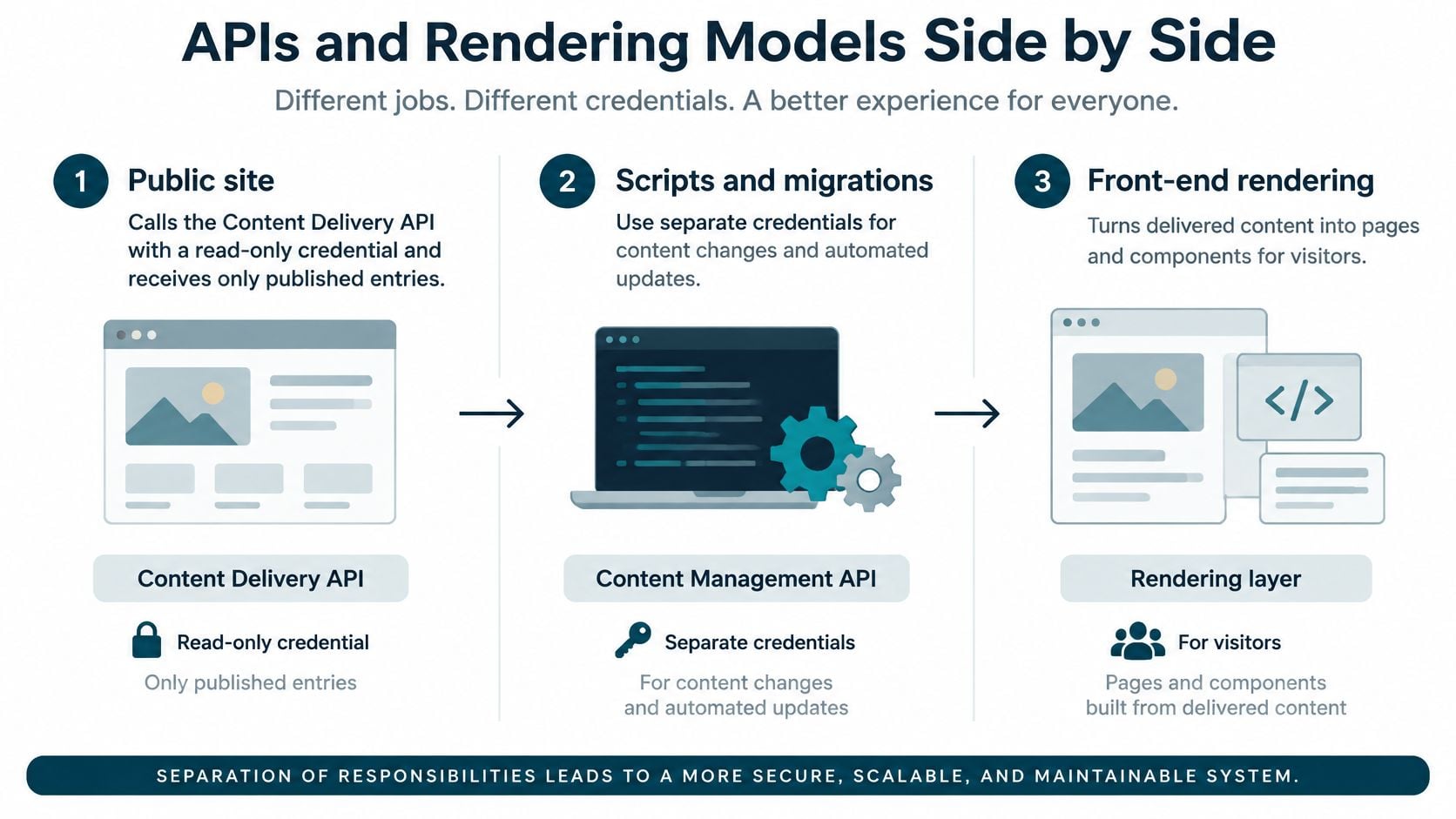
Umbraco's headless and APIs documentation identifies a Content Delivery API for powering headless or decoupled front ends, a Management API for creating and managing content programmatically, and webhooks that send HTTP notifications to external systems when content events occur. That split means visitors can read published content without exposing the editorial back office.
REST or GraphQL
Either style can work. REST is simpler to cache and easier to trace in server logs. GraphQL helps when a page needs a nested tree in one request and you want to avoid fetching fields you'll throw away.
Don't let that choice hide the security rule. A write token never belongs in browser code, no matter which API style you pick. For broader patterns on endpoints, versioning, and error handling, the API best practices from TekRecruiter are a useful reference to compare against your own brief.
API Jobs and Rendering Choices
| Piece | Who calls it | Typical use | Risk if mixed up |
|---|---|---|---|
| Content Delivery API | Public site or app with a read-only token | Published entries for pages | Drafts or write access leak to the browser |
| Management API | Trusted server or migration script | Create and update entries | A write key shipped in front-end code |
| Webhooks | CMS pushes to your endpoint | Rebuild, search index, or cache purge | No signature check, so forged events get through |
| Static generation | Build server at publish time | Marketing pages that change on publish | Visitors keep old HTML until the next build |
| Server-side rendering | App server on each request | Personalized or fast-changing pages | Slow first byte and burned API quota |
| Incremental regeneration | Framework on a timer or on demand | Blogs and catalogs | Wrong revalidate window shows stale or half-updated pages |
Rendering is a page decision, not a brand decision. Static generation fits service pages that change when an editor hits publish. Server-side rendering fits pages that change with the logged-in visitor. Incremental regeneration fits a blog or catalog where a full rebuild would leave editors waiting.
Preview sits outside all three. Editors need a draft view with its own token and a response that shared caches won't store. If preview is an afterthought, editors will publish live just to check layout, and that's where embarrassing mistakes start.
How to Connect the CMS to the Front End
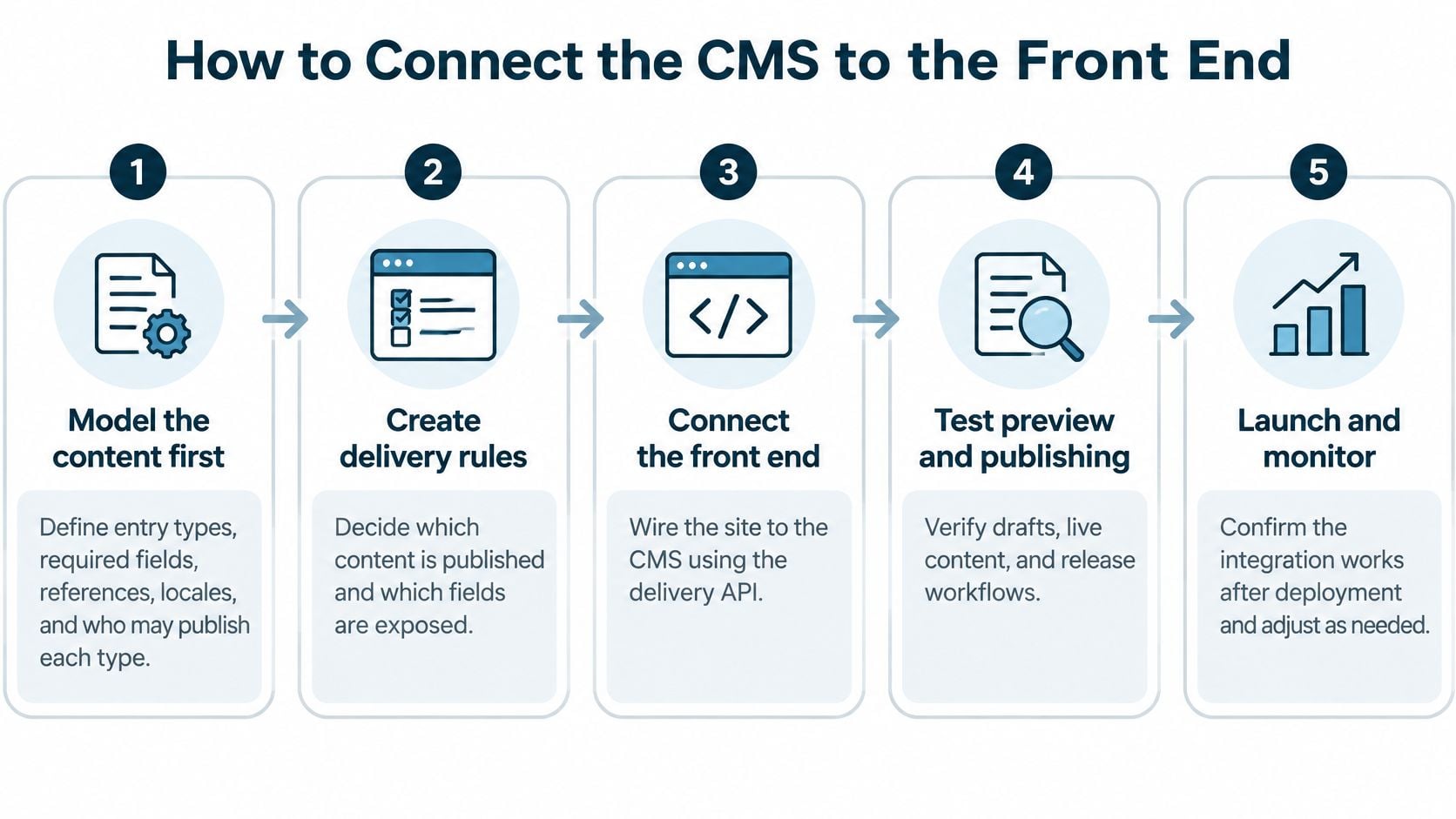
Work in order. Each stage assumes the one before it is sound, and skipping ahead usually means rebuilding the part you rushed.
The flow below keeps the sequence visible for both developers and editors.
Five Stages, In Order
- Model the content first. Define entry types, required fields, references, locales, and who may publish each type. Split people, events, and locations into their own entries. The common slip is pasting a whole page into one rich-text field, which destroys reuse on day one.
- Expose published content. Use REST or GraphQL for delivery and keep write access on a server-side Management API. The slip here is letting browser code call endpoints meant for trusted systems.
- Build the presentation layer. Pick the framework that matches your rendering model, such as Next.js for incremental regeneration or a static setup for mostly fixed pages. Don't choose by popularity.
- Add preview and publishing. Editors need drafts, scheduled publishing, and a publish path that fires a webhook with retries. Build rollback in now, not after a bad release.
- Test failure, not just success. Check caching, accessibility, SEO, and behavior when the API slows down or stops. Test image-heavy pages, filtered lists, cold cache, warm cache, and webhook-triggered rebuilds.
A 2025 academic evaluation of Contentful with Next.js and Gatsby found measurable differences in build time, runtime performance, scalability, and integration complexity. That's why I'd benchmark static generation, incremental regeneration, and server-side rendering with your own entries and payloads instead of trusting a framework leaderboard.
This walkthrough gives a visual sense of the connection work described above.
Your host and edge setup shape those results. If you're putting the front end behind a CDN, guidance on how teams connect applications to Cloudflare can help you plan caching and deployment before you wire the CMS calls. Our own notes on API integration best practices cover the handoff details we want settled before code starts.
Core Web Vitals Acceptance Gates
| Metric | Good threshold | What it measures |
|---|---|---|
| LCP | 2.5 seconds or less | How long the main content takes to load |
| INP | 200 milliseconds or less | Delay between a user action and the next visual response |
| CLS | 0.1 or less | Unexpected layout shift while the page loads |
Judge each rendering option against field data from real mobile and desktop visitors, not one clean lab run on office Wi-Fi. Set the gates before launch, then hold the build to them. A fast demo page with three sample entries proves very little.
Practical rule: If a test doesn't use your heaviest real page, it isn't a performance test. It's a rehearsal for a good meeting.
Cache API responses at the CDN or edge where freshness allows it. When content changes, invalidate the affected URLs instead of rebuilding the whole site. Full rebuilds feel safe, but they get slower as the site grows and they delay simple edits for no good reason.
Keys Caches and What Google Actually Sees
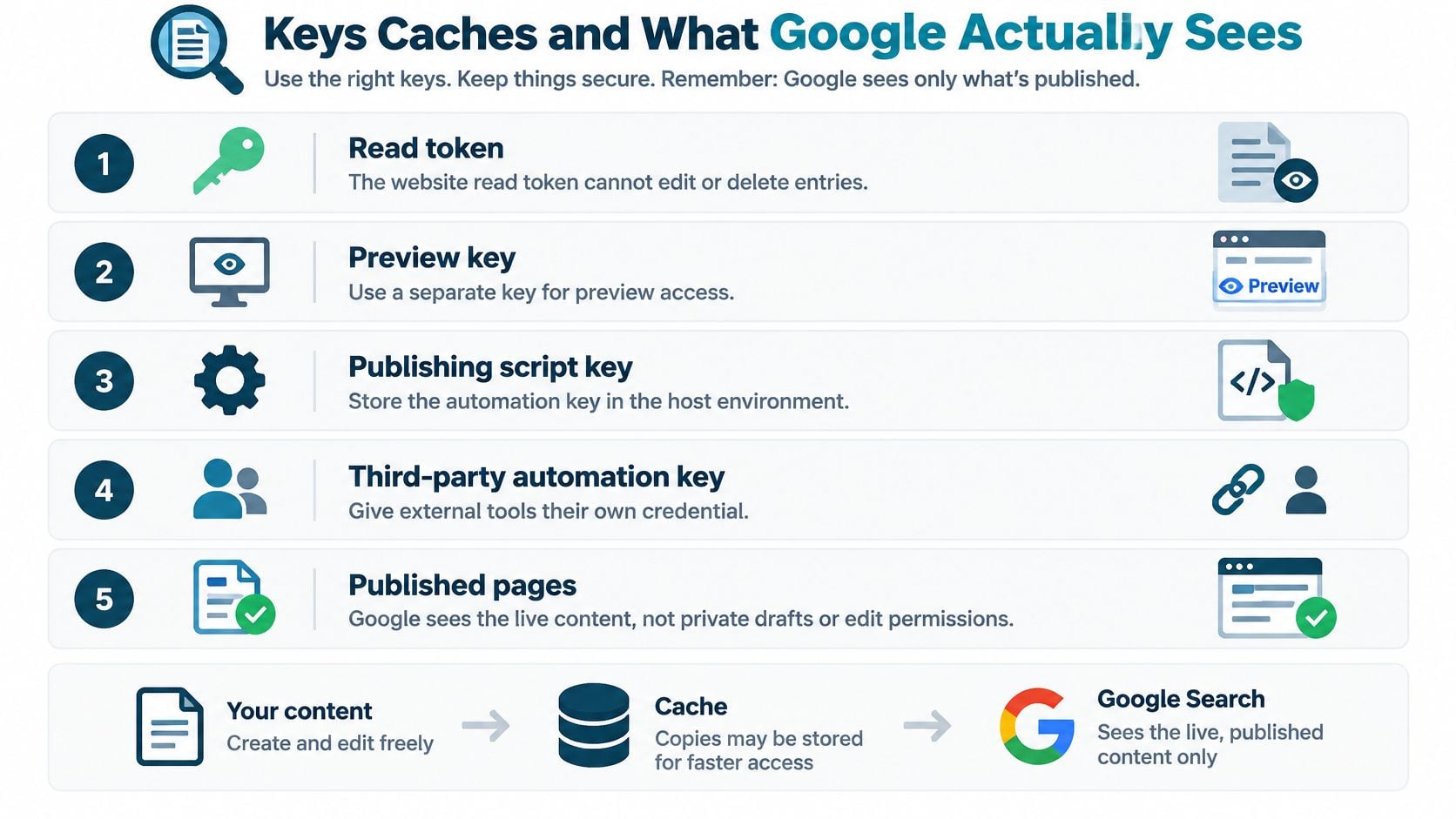
Separate keys are not optional. The website gets a read-only delivery token that can't edit or delete entries. Preview gets its own key. Publishing scripts and third-party automation get theirs.
Store those credentials in the host environment, not in the repo and not in a shared note. Rotate them when a vendor, employee, or freelancer leaves. If one key leaks, you revoke one job, not the whole site.
This checklist keeps the credential split plain for the people who'll maintain it.
Controls Around the Keys
- Rate limiting: Cap the public read path so a broken loop or abusive burst doesn't burn your CMS quota.
- Logging: Record auth failures, permission errors, unusual volume, and content mutations so you can investigate later.
- Webhook verification: Check signatures, ignore replays, and log failed deliveries for retry.
- Least privilege: A front end that only reads published content should never hold a credential that can change it.
Cache Directives Mean Specific Things
MDN's Cache-Control reference distinguishes a shared cache, which stores one response and reuses it for multiple users, from a private cache. It also explains that no-cache permits storage but requires validation with the origin server before reuse, while no-store is the directive when a response must not be stored by a compliant cache.
Apply that. Public pages and versioned images can live in a shared CDN cache. Account pages, previews, and auth responses can't. Use private when a browser may store a response but a shared cache may not.
Publishing needs a purge plan. HTTP doesn't define one universal cache-deletion command, so your publish webhook has to call the CDN or framework revalidation API for the URLs that changed. Without that step, editors will swear they published and visitors will still see last week's hours. Our guide on how to improve Core Web Vitals covers the page speed side of the same caching choices.
Check the HTML Google Receives
Don't trust the browser view. Google crawls, renders, then indexes, and a successful API response doesn't prove the crawler received finished HTML. Headings, links, body copy, and structured data can look fine to you and still be missing from rendered output.
Prefer server rendering, static rendering, or hydration over serving bots a separate copy. Then inspect key templates in Google's URL Inspection Tool and Rich Results Test. Look at the rendered DOM, loaded resources, and console errors. For a small organization that depends on organic search, that check protects the traffic paying for the rebuild.
Content Migration Pitfalls and Fixes
The risky part is usually the move and the handoff, not the first successful API call. Getting one entry onto one test page is easy. Moving years of pages, media, authors, and redirects without losing search traffic is the job.
A global 2024 CMS survey from Storyblok identified lack of technical support as the most common migration roadblock and reported that collaboration across multiple independent platforms and moving finalized content into the CMS affected 38% of respondents. Plan for support and ownership early, not when editors get stuck.
Inventory, Map, Then Dry Run
Start with an inventory of legacy URLs, media, metadata, authorship, redirects, and who owns each content type. Map each old type onto the new schema. Decide what doesn't move at all, because migrating dead pages just gives you a cleaner system full of old clutter.
Next, run a scripted dry run. It should report missing fields, invalid references, duplicate slugs, unsupported rich-text markup, oversized assets, and broken internal links. Fix the mapping, run it again, and keep the reports.
Import in repeatable batches with stable source identifiers. If a job fails halfway through, you can resume it and reconcile records instead of guessing which entries already exist. That discipline sounds dull. It saves the launch.
Migration Defects and the Fix
| Defect | What breaks | Fix |
|---|---|---|
| Pages stored as one unstructured blob | Fields cannot be reused on another channel | Split into typed entries before import |
| Presentation HTML inside rich text | Styles break and sanitizing gets messy | Keep structured fields and a limited rich-text set |
| No draft or preview role | Editors publish live just to check layout | Preview token plus no-store responses |
| Schema changes with no version | Old entries fail new components | Version the schema and migrate in batches |
| Front end cannot render a block | Blank regions on the live page | Contract-test each component against the schema |
| API down at launch | Pages error instead of showing last good content | Stale-cache fallback and a status check |
Protect search equity with one-to-one URL mapping, 301 redirects, canonical tags, and an XML sitemap. After launch, watch crawl errors instead of assuming the redirect file worked. Our CMS migration services page explains how we scope that move when a team doesn't want to manage it alone.
Before go-live, compare sampled pages against the old site. Run accessibility and structured-data checks. Simulate an API outage and confirm visitors get the last good cached content. Then watch traffic, conversions, 404s, and Core Web Vitals for at least one full reporting cycle.
A migration isn't done when content imports. It's done when editors can publish, visitors can find the pages, and someone knows how to roll back a bad release.
Set the Scope Before You Sign a Build
You have two good outcomes here, and one bad one. The bad one is buying a headless architecture because it sounded current, then discovering nobody owns it.
If the decision table pointed you to a traditional or hybrid setup, stop there with confidence. Spend on content, speed, and upkeep. That's not settling. For one website, it's often the smarter business call.
If a second channel is already funded, write the scope before vendor calls. The document doesn't need to be long. It does need names and answers.
What the Scope Must Name
- The stack: CMS, front-end framework, host, and who holds production keys.
- The editor flow: How drafts preview, who can publish, and how scheduled releases work.
- The outage plan: What the public site shows when the content API is down, and who gets alerted.
- The exit path: A full export of entries, media, and relationships in a reusable format, plus a tested rollback for a bad publish.
Ask every team you consider to put post-launch support in writing. Who fixes a broken deploy? Who rotates keys when a freelancer leaves? Who answers when search indexing drops after a schema change? Vague answers now become invoices and downtime later.
Our Custom Web Development work builds custom websites and digital systems for businesses upgrading legacy systems, launching new products or platforms, running complex multi-site needs, or doing stable rebuilds after years of patchwork. A headless front end is one option inside that work, not the starting assumption. We also stay after a website launch, and if something breaks we handle the problem ourselves.
If you'd prefer not to handle uptime issues at all, managed hosting and security with 24/7 monitoring, SSL and security patches, and daily backups is a separate conversation worth having before architecture. Either way, let the reuse case make the decision. If reuse is real, scope it tightly. If it isn't, leave the architecture alone and keep your team focused on the site visitors use.
If you're weighing a headless build against a conventional rebuild, Bruce and Eddy can help you scope the content model, API connections, hosting, and post-launch support before you commit to a platform. We'll tell you plainly if a traditional CMS is the better buy for your team. Visit us to start that conversation with your channel list, editor needs, and ownership questions in hand.
